F5 Programmability Training > Class 1: Introduction to Automation & Orchestration > Module 2: Abstracting Services using the App Services 3 Extension Source | Edit on
Lab 2.2: Install the AS3 Extension
As mentioned previously, iControl LX Extensions are packaged using an RPM format. We will use the REST API to install AS3 onto our BIG-IP device.
Note
This lab work will be performed from
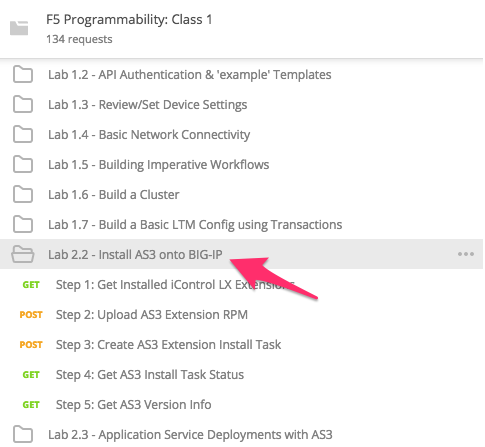
Lab 2.2 - Install AS3 onto BIG-IP folder in the Postman
Collection
Task 1 - View Installed iControl LX Extensions
Perform the following steps to complete this task:
Send the
Step 1: Get Installed iControl LX Extensionsrequest to view extensions installed on the BIG-IP device:
Review the JSON response Body. The JSON payload shows extensions that are installed on the BIG-IP device in the
itemsarray. In this case we have no extensions installed so theitemsarray is empty.
Task 2 - Install the AS3 Extension
Perform the following steps to complete this task:
Using the Chrome web browser open a new tab and click the
AS3 Releasebookmark.Click the file with the
.rpmextension to download it. The file will be located in the/home/ubuntu/Downloadsfolder on your jumphost.Click the
Step 2: Upload AS3 Extension RPMrequest.Click the Body tab, then click the Choose Files button:
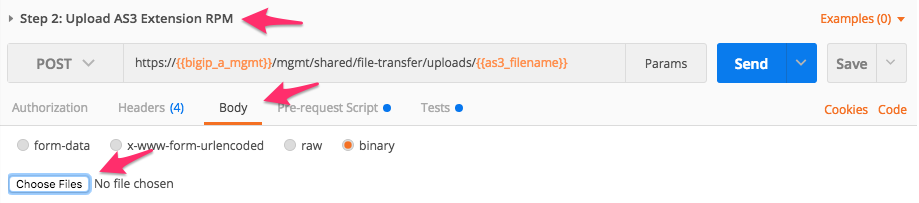
Select the previously downloaded RPM file located in the
Downloadsfolder on your jumphost. Then click the Send button to upload the RPM file to the BIG-IP system:
Review the Test Results to ensure the file upload was successful:
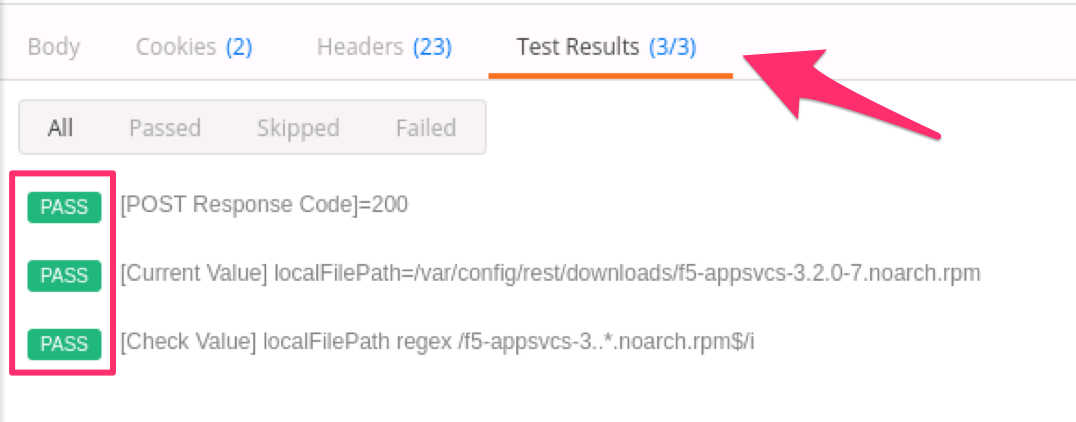
Click the
Step 3: Create AS3 Extension Install Taskrequest and click Send. This request will command the iControl LX framework to install the RPM uploaded in the previous step. Because the installation task is an asynchronous operation we need to check the status of the task in the next step.Click the
Step 4: Get AS3 Install Task Statusrequest and click Send.Check the Response Body and ensure the task
statusisFINISHED: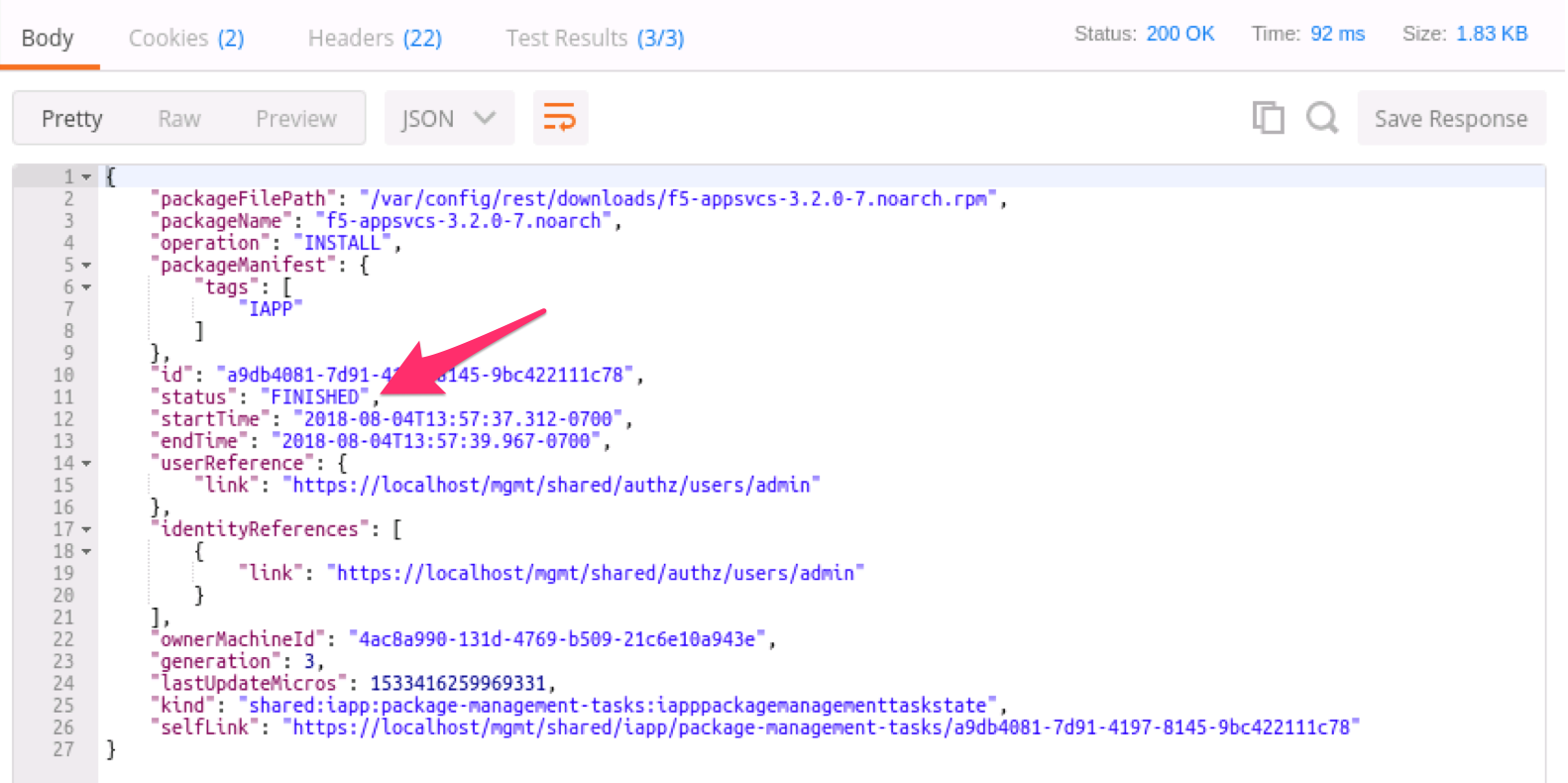
Click the
Step 5: Get AS3 Version Inforequest and click Send. Review the Response Body to ensure the AS3 is installed and has started: