F5 Programmability Training > Automation Mini Classes > Mini Class 1 - F5 Architectures with Ansible > Module 1 – Basic BIG-IP administration with Ansible Source | Edit on
Lab 1 - Creating a Pool on BIG-IP
You need to create a pool on a BIG-IP. Use the bigip_pool module.
As a reminder, the following assumes that you are using RDP to access the Jump
host provided for this lab, that you are SSH’d into the “Ansible”
host and that the current working directory in that session is
/root/ansible/mod1/.
Task 1 - Create a pool on a BIG-IP
Create a playbook
pool.yaml.Type
nano playbooks/pool.yamlType the following into the
playbooks/pool.yamlfile.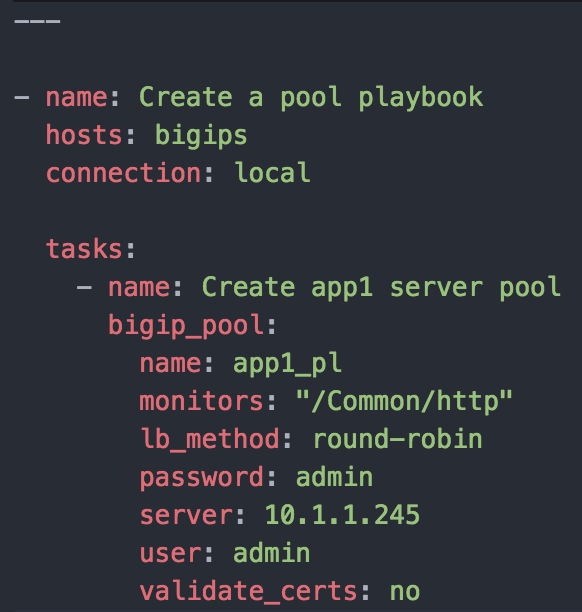
Ctrl-x to save file.
Hint
If you encounter syntax errors you can troubleshoot issues and/or the use of an online editor such as http://www.yamllint.com/
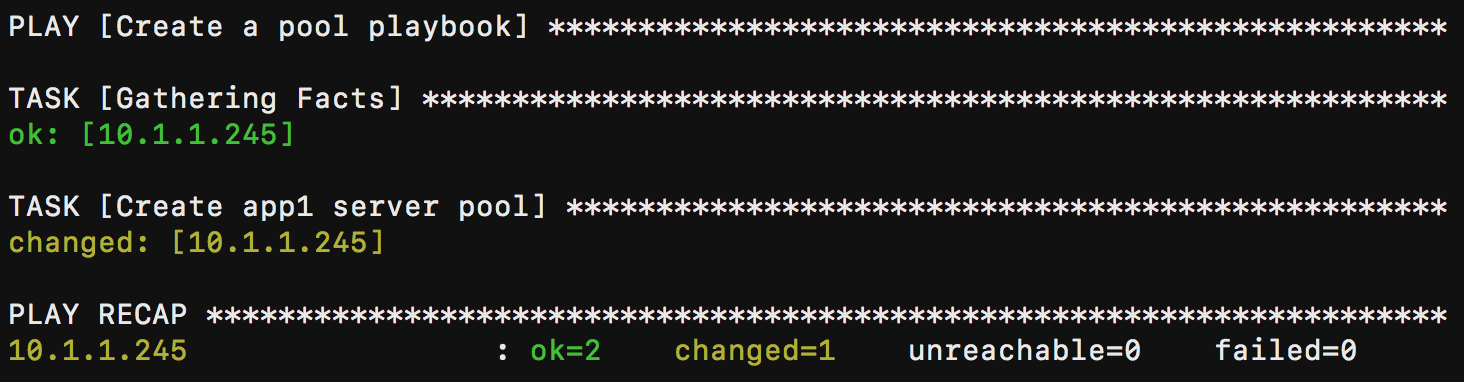
Run this playbook.
- Type
ansible-playbook playbooks/pool.yaml
If successful, you should see similar results
- Type
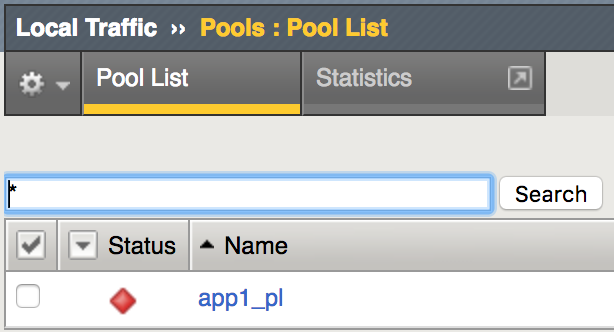
Verify BIG-IP results.
- Login to BIG-IP Admin GUI with username
adminand passwordadmin - Select
- Login to BIG-IP Admin GUI with username
Note
The bigip_pool module can configure a number of attributes for a pool.
At a minimum, the name is required.
This module is idempotent. Therefore, you can run it over and over again and so-long as no settings have been changed, this module will report no changes.
Notice how we also included the credentials to log into the device as arguments to the task. This is not the preferred way to do this, but it illustrates a way for beginners to get started without needing to know a less obvious way to specify these values.
The module has several more options, all of which can be seen at this link.
By default, the changes made to the BIG-IP via its REST interface and the
Ansible playbooks are not persistent. It is important that you utilize the
bigip_config module to save that running config. You can find more info here.
Bonus playbook: - save the running config you may add the following snippet to the playbook:
- name: Save the running configuration of the BIG-IP
  bigip_config:
    save: yes
    server: 10.1.1.245
    password: admin
    user: admin
    validate_certs: no
  delegate_to: localhost