F5 Programmability Training > Class 1: Introduction to Automation & Orchestration > Module 3: Deploying AS3 Declarations with Ansible Tower Source | Edit on
Lab 3.4: Ansible Tower and REST
While much of the focus on Tower has been using the GUI, this has primarily
been to familiarize users with Ansible Tower and its object model. The Job
Templates that are created within Tower all have the ability to be exposed with
a REST API. In this lab we will call the same playbook template
Tenant1_Pool_Add_Member as we did in the web GUI. This method makes it much
easier to work Tower into a CI/CD toolset.
Task 1 - Call Tenant1_Pool_Add_Member with REST API
Note
This lab work will be performed from
Lab 3.4- Ansible Tower and REST folder in the
Postman Collection
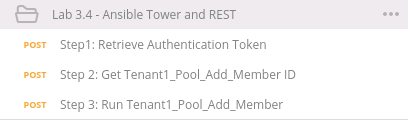
Using Postman select
Step 1: Retrieve Authentication Token. Review the Request JSON Body. The JSON body is used to get the Auth token from Tower. Press Send.
Select
Step 2: Get Tenant1_Pool_add_member ID. This is a GET Request to retrieve the ID of the Template that we want to call for adding a Member. Press Send.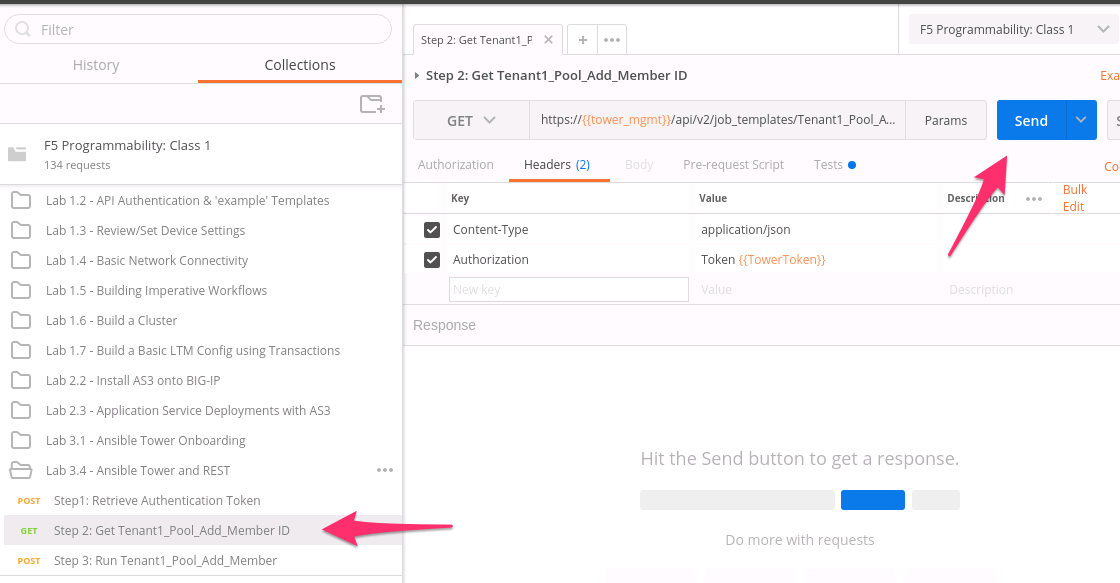
Select
Step 3: Run Tenant1_Pool_Add_Member. Review the JSON Body of this request. The variables being sent are the same ones that theSurveywould request in the GUI. Press Send.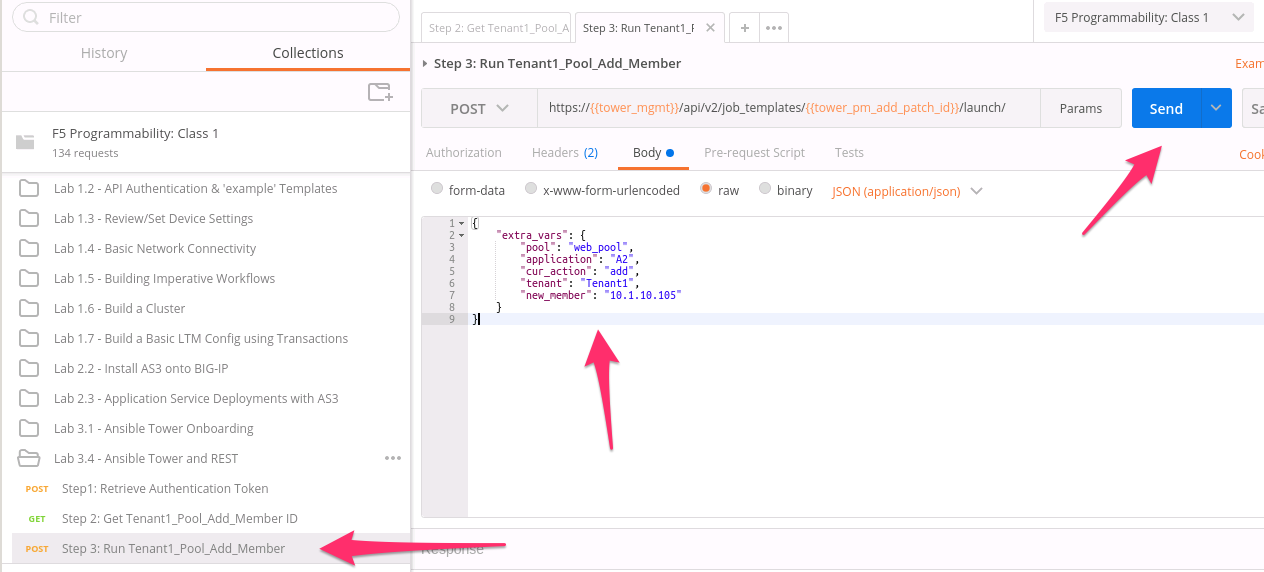
Open a Chrome window/tab to the Tower GUI at
https://10.1.1.12and login withadmin/admincredentials. Navigate to in the top Menu. Select the job that completed on the top of the list. The ID may vary, but the name will beTenant1_Pool_Add_Member.
Once the Job template is complete you should see the Status as
Successful. At this point you have add a Pool member to the pool on the BIG-IP using the REST API in Ansible Tower.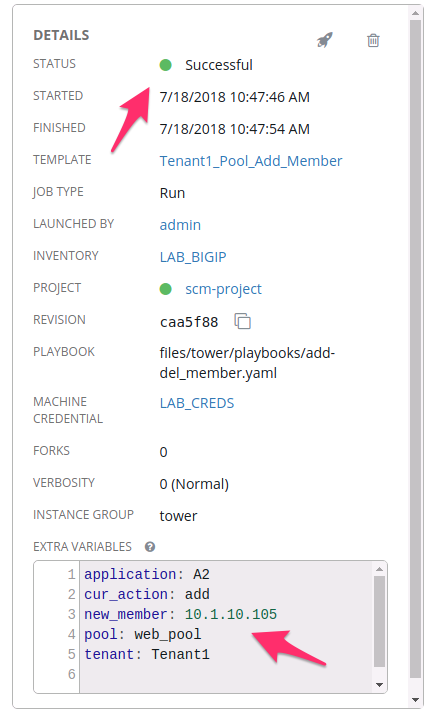
Note
For more information about ansible tower please reference the following start point. https://www.ansible.com/products/tower