F5 Programmability Training > Class 2: Building Continuous Delivery Pipelines > Module 4: Continuous Integration / Continuous Delivery Source | Edit on
Lab 4.1 - File Locations and Jenkins setup
We’ve been executing all our commands locally from Automated scripts; we are now going to take the different toolkits and tie them together to form a Pipeline. Pipelines will vary in deployments and even within solutions. Our lab will show you just one way one could be utilized.
Task 1 - Locating the Jenkins files and how they are setup
Lets make sure the Jekins files were mapped correctly.
Execute:
cd /home/snops/f5-automation-labs/jenkins/to access our folder containing the Jenkins Pipeline FilesThe Jenkins files are located alongside the f5-newman-wrapper files we’ve used in the previous labs, setup this way was for ease of learning. You may place tools in different structures in your environment.
File Locations:
|- /f5-automation-labs
   |- /jenkins
   |  |  /f5-newman-build
   |  |      Jenkinsfile1-2
   |  |      Jenkinsfile5
   |  |  /f5-newman-operation
   |  |      Jenkinsfile3
   |  |      Jenkinsfile4
Lets review the first Jenkins file, from /home/snops/f5-automation-labs/jenkins/f5-newman-build, execute
cat Jenkinsfile1-2File output:
 1
 2
 3
 4
 5
 6
 7
 8
 9
10
11
12
13
14
15
16
17
18
19
20
21
22
23
24
25
26
27
28
29
30
31
32
33
34
35
36
37
38
39
40
41
42
43
node {
   stage('Testing') {
      //Run the tests
      //sh "python -m /home/snops/f5-automation-labs/jenkins/f5-newman-build/f5-newman-build-1"
      //sh "python -m /home/snops/f5-automation-labs/jenkins/f5-newman-build/f5-newman-build-2"
   }
   stage('Frameword-Deployment') {
       //Run SNOPS Container Newman Package Virtual and Pool
      sh "f5-newman-wrapper /home/snops/f5-automation-labs/jenkins/f5-newman-build/f5-newman-build-1"
      //chatops slack message that run has completed
      slackSend(
         channel: '#jenkins_builds',
         color: 'good',
         message: 'Super-NetOps Engineer is about to deploy an F5 Service Framework, Approval Needed!',
         teamDomain: 'f5agilitydevops',
         token: 'vLMQmBq2tiyiCcZoNlbmAi0Z'
         )
   }
   stage('Approval') {
      //Gate the process and require approval
      input 'Proceed?'
      //chatops slack message that run has completed
      slackSend(
          channel: '#jenkins_builds',
          color: 'good',
          message: 'Super-NetOps Engineer just approved a new F5 Service Framework, thats some serious Continuous Delivery!',
          teamDomain: 'f5agilitydevops',
          token: 'vLMQmBq2tiyiCcZoNlbmAi0Z'
          )
   }
   stage('Add-Sevice-Node') {
       //Run SNOPS Container Newman Package add Node to Pool
      sh "f5-newman-wrapper /home/snops/f5-automation-labs/jenkins/f5-newman-build/f5-newman-build-2"
      //chatops slack message that run has completed
      slackSend(
         channel: '#jenkins_builds',
         color: 'good',
         message: 'Super-NetOps Engineer just added a Node to a Service, Production is Online!',
         teamDomain: 'f5agilitydevops',
         token: 'vLMQmBq2tiyiCcZoNlbmAi0Z'
         )
   }
}
- This is a Jenkins Pipeline file, which we will be inputing into a Pipeline deployment via our Jenkins Toolkit.
- The file should be human readable even without Jenkins experience, a
stagecan be thought of as a step in the Pipeline (or a work-center in manufacturing terms); right after the stage is its name, followed by some commands. Since the super-netops-container is running this Jenkins installation locally, we can use local mappings to file structure. - In more common deployments the Jenkins file would be stored in a SCM (like Github) and called during an Event (Build/Pull Request) or a Polling Timer, or even some other kind of scripting launch.
- Testing in Pipeline before executing code with tools like
linteror python scripts can make sure formatting is valid, reducing errors from happening during builds.
Our installation also has some Slack calls. Which we will setup next.
Task 2 - Accessing Jenkins and Installing the Slack-Notifier Plug-in
Slack is a ChatOps toolkit, similar to Skype, Teams, Messenger, or IIRC! Except Slack also has the ability to take in bots. Slackbots are used to interact with services. They might query for something when asked, or give you information when they notice something. In our case our Jenkins Pipeline file will use Slack to notify all of us when an action happens, enabling collaborative teamwork.
Note
In the Jenkins Files, the message piece is sent to the Slack channel, if you would like to modify your messages for our lab change the text!
Access Jenkins via Chrome, open a new tab to
http://localhost:10000, the user credentials areadmin\default.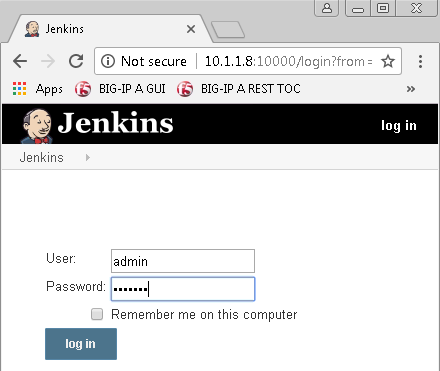
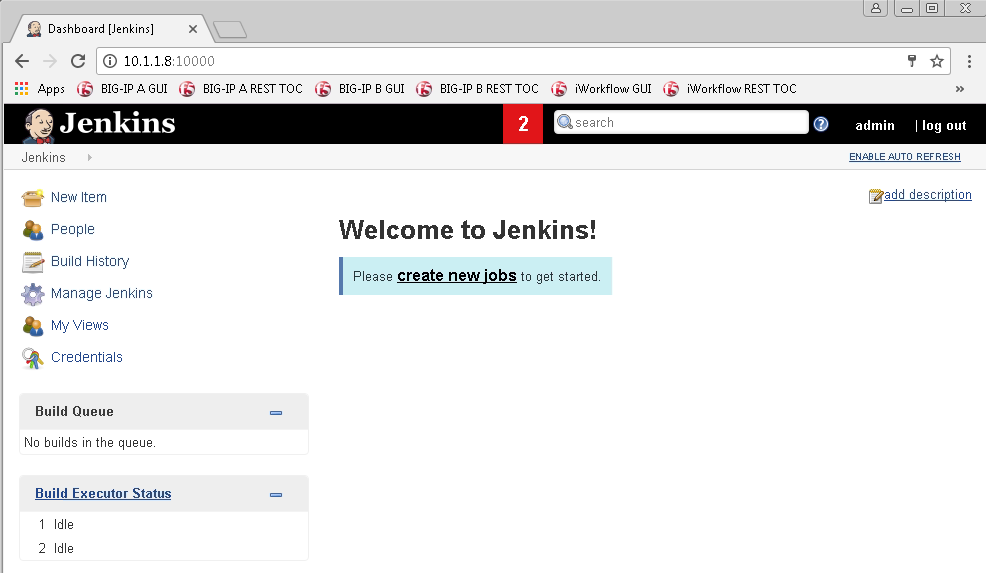
Once you are logged into Jenkins it should look like below
Click on Manage Jenkins and select
Go to plugin manager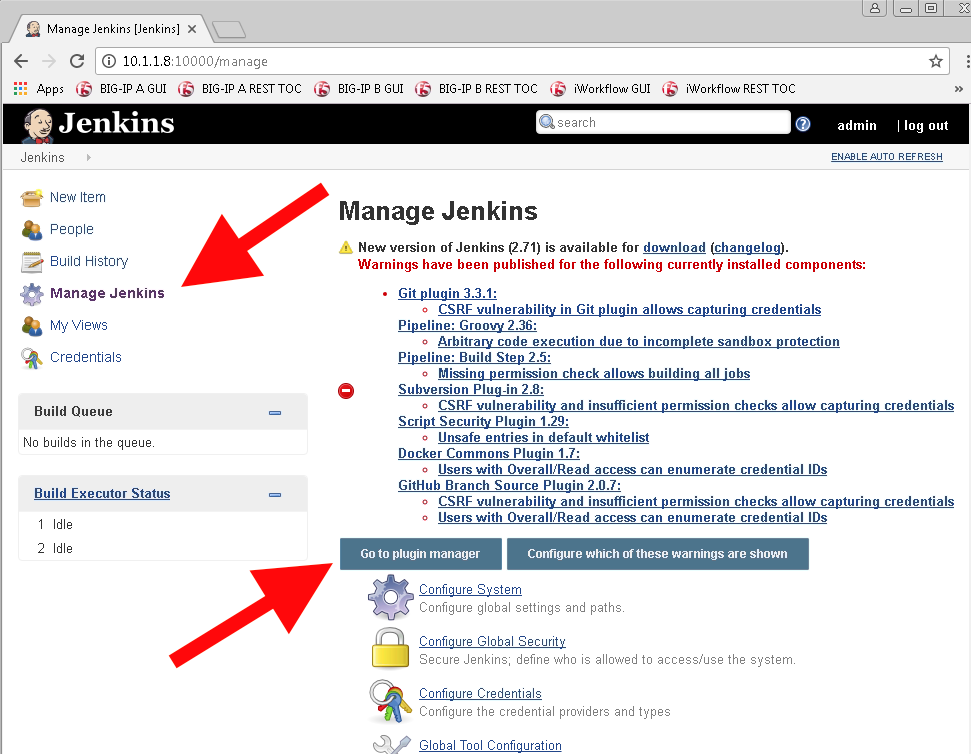
From the Plugin Manager page, select
Availablethen filter onslack, once the filter is complete chooseSlack Notificationand executeInstall without Restart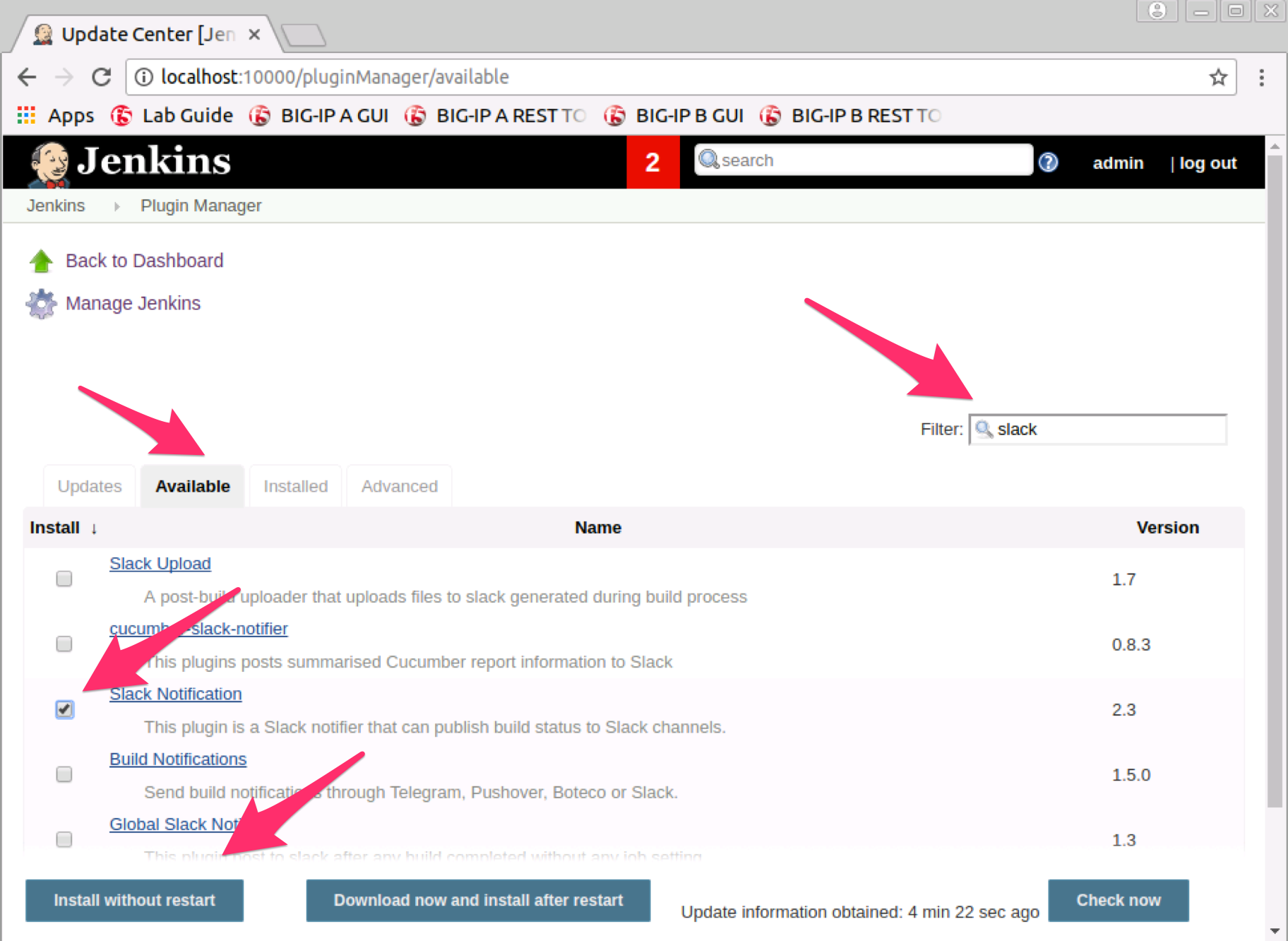
Once the Slack Notification Plugin has changed to
Success, tick the radio button forRestart Jenkins when installation is complete and no jobs are running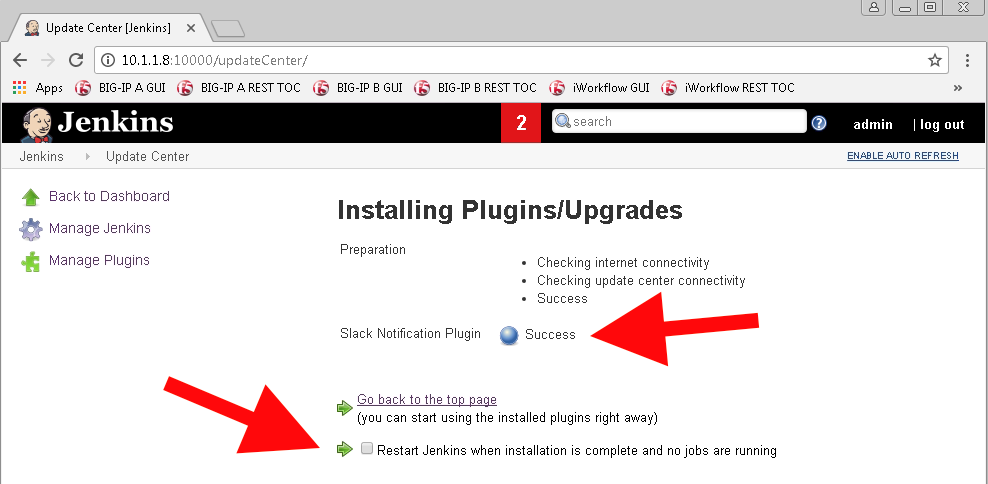
Slack can take a few minutes to install in the background (give it 30 seconds), once the
Restarting Jenkinsglobe is grey and the status isRunninggo back to Jenkins Home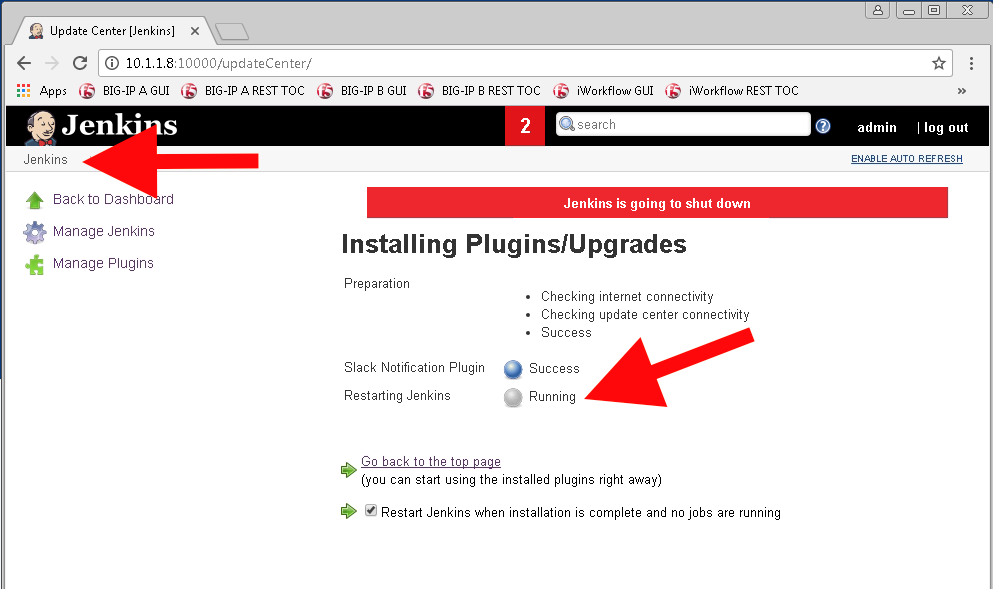
Executing a restart of Jenkins will stop your session, you will need to log back into the system